
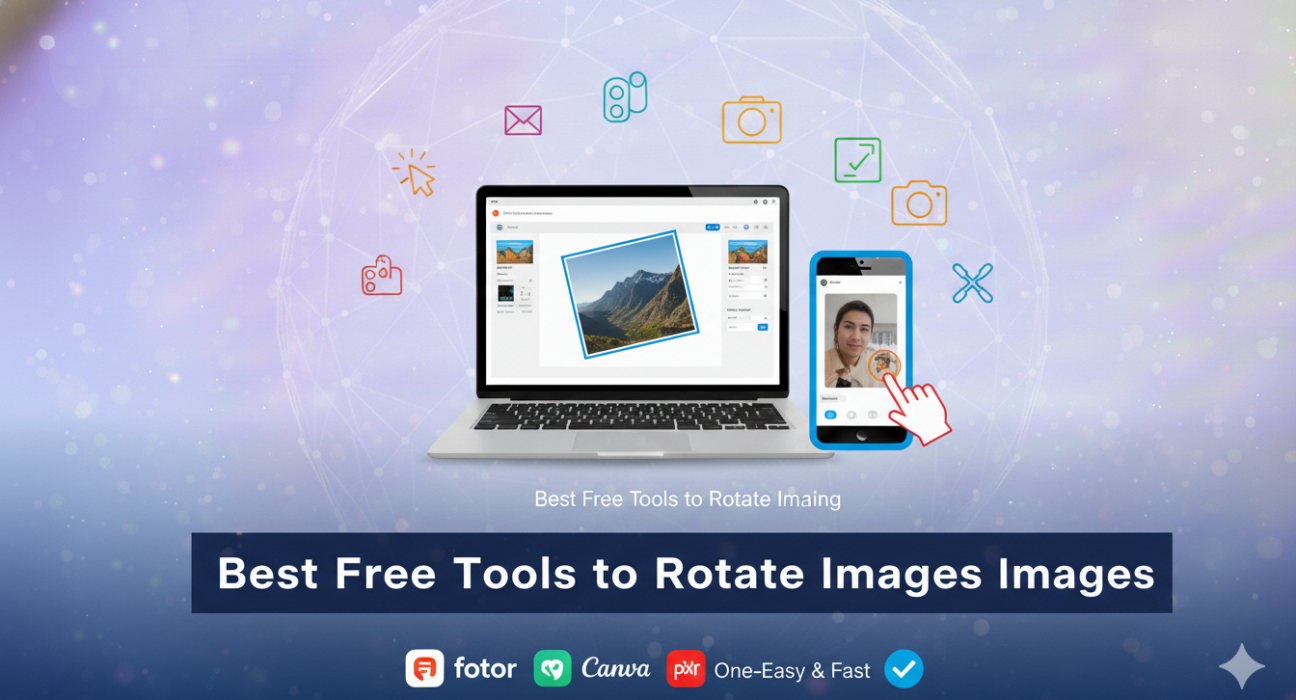
If you took a photo only to discover it is in the wrong orientation for sharing, don’t worry, it is an easy fix. All you need is an app that can rotate your image 90 degrees – from Portrait to Landscape. Luckily, almost all editing apps have a rotation tool.
However, not all rotation tools are created the same. For example, some only do 90-degree increments while others do 45 degrees or even 1-degree increments. The lower the increments, the more control you have over your rotation and the composition of your photo.
This article will show you the best way to rotate a photo on your mobile device and review the 5 best image rotating apps that are free.
ALSO READ: Snapchat Ad Image & Video Size Requirements
What is Image Rotation?
To rotate an image means turning an image on an axis and changing its orientation. When done in 90-degree increments, this typically means switching from Portrait to Landscape or vice versa.
Top 5 Apps to Rotate Images
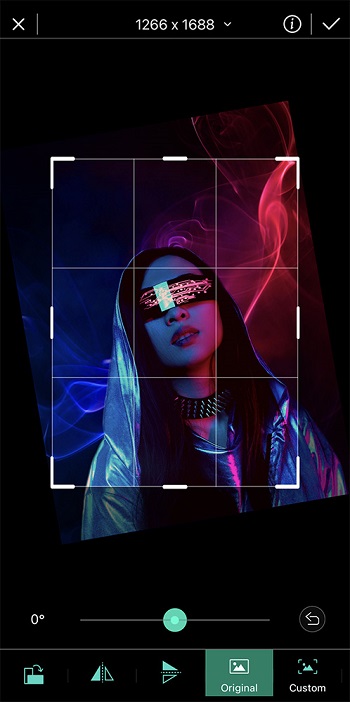
1. PhotoDirector – Best Overall
Overall Rating: 10/10
Rotate Tool: 10/10
Key Features:
- User-friendly interface
- Large toolbox of advanced effects
- AI and beautification Tools
PhotoDirector has an easy-to-find, and simple-to-use rotate tool. The image will rotate 90 degrees with each tap for quick and easy rotation from Portrait to Landscape and back. There is also a slider bar to turn the image to any degree you want for a more precise edit.
Besides having a great rotate tool, PhotoDirector is the best all-in-one free photo editor that allows you to animate photos, remove unwanted objects, change backgrounds and edit with amazing special effects. It comes with an extensive library of stock images, filters, stickers, text options, and effects like blur and glitch. There are even beautification tools like face smoother and shaper.
PhotoDirector is always at the forefront of the latest photo trends and technology because it is updated monthly. With so many editing tools and effects, PhotoDirector is surprisingly easy to use, with guided edits and tutorials when you need them.
Start making your memories look as impressive as they felt! Download PhotoDirector for free today on your iOS or Android device.
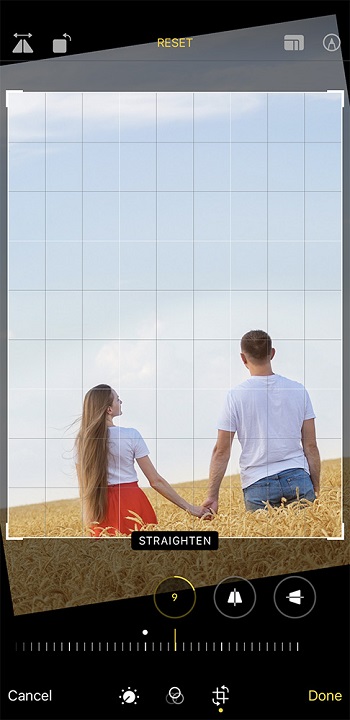
2. Apple Photos – Best Color Tools
Compatibility: iOS
Overall Rating: 9/10
Rotate Tool: 9/10
Key Features:
- Photo and Video storage
- Facial recognition
- Crop/Rotate/Flip
- Precise color tools
This free photo and video storage app comes standard on all Apple devices. Apple Photos has automatic album creation based on the media type, making it easy to find videos, screen recordings, selfies, etc. It also has photo and video editing features, including an easy-to-use slider to fine-tune exposure, shadows, highlights, brightness, contrast, vibrance, and more.
Tap the Crop/Rotate button and quickly rotate, crop, mirror, and change the aspect ratio of your image. The Rotate icon will move your image 90 degrees or use the slider tool to move to a precise degree.
Apple Photos is entirely free and easy to use. It is perfect for photo storage and simple edits but doesn’t offer advanced features.
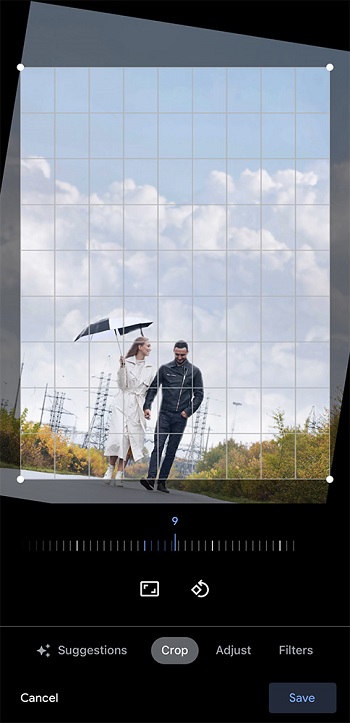
3. Google Photos – Best for Organization
Compatibility: iOS, Android
Overall Rating: 9/10
Rotate Tool: 9/10
Key Features:
- Crop, Rotate and Trim
- Lighting Adjustment
- Customizable Filters
- Drawing Tool
Google Photos is a photo and video management app. With the app’s editing tools, you can create GIFS, collages, slideshows, movies, and more. Transform photos with filters, lighting adjustment, and drawing tools.
The rotate tool in Google Photos is easy to find and use. Tap on Rotate to change the image to 90 degrees and use the dial to make minor adjustments. You can automatically straighten the image by hitting Auto.
Google Photos is a great way to store photos and videos. It comes with free storage and smart albums based on location, people, and even pets. However, the editing tools are minimal.
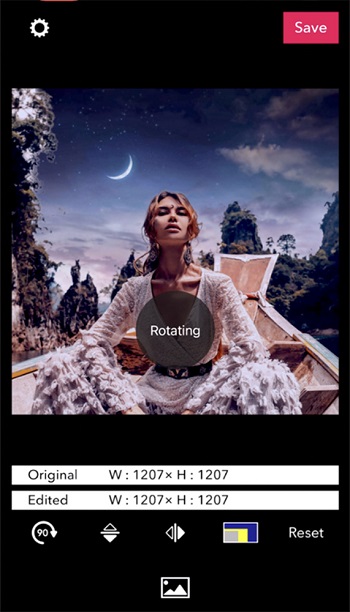
4. PicGizmo – Best for Flipping Images
Compatibility: iOS, Android
Overall Rating: 8/10
Rotate Tool: 8/10
Key Features:
- Rotate
- Flip Vertically
- Flip Horizontally
- Resize
PicGizmo is a fast and straightforward way to flip, resize and rotate photos. Flip photos vertically or horizontally to get a mirror image.
Rotating images is super quick and easy with PicGizmo. The Rotate icon is the first thing you see on the screen and one of only 4 options. PicGizmo will rotate your photos 90 degrees with each tap.
PicGizmo is undoubtedly a fast way to rotate photos, with no learning curve involved. However, you can only rotate photos 90 degrees; there is no option for anything in between. There are also only 4 photo editing options, and the app goes several years between updates.
5. Rotate Image【Turn Image】- Best to Change Image Orientation
![Rotate Image [Turn Image]](https://dl-file.cyberlink.com/web/content/b1081/Rotate_image_Turn_Image.jpg)
Compatibility: Android
Overall Rating: 7/10
Rotate Tool: 8/10
Key Features:
- Rotate image clockwise
- Rotate image counterclockwise
- Connect to camera roll
- Undo button
Rotate Image【Turn Image】 does exactly what it advertises – it rotates photos. There are no frills, no ads, just simple rotation from Portrait to Landscape or vice versa.
This is a simple way to rotate photos in the wrong orientation. It is the app’s only function, so there is no learning curve and no time searching for the correct tool. Just open the app and rotate the image.
Rotate Image [Turn Image]is a good choice for people who often need to change the orientation of their photos. However, for an app with only one job, its rotating options are limited. The app will only rotate a full 90 degrees each time; there is no way to make minor adjustments. There is also no batch rotate option, so if you have a lot of photos to rotate, you will have to do them one at a time.
Best Apps to Rotate Images Comparison Chart
| Software | PhotoDirector | Apple Photos | Google Photos | PicGizmo | Rotate Image [Turn Image] |
|---|---|---|---|---|---|
| OS | iOS, Android | iOS | iOS, Android | iOS, Android | Android |
| Rotate Tool | Rotate 90 degrees or to a precise degree | Rotate 90 degrees or to a precise degree | Rotate 90 degrees or to a precise degree | Rotates photos 90 degrees | Rotates photos 90 degrees |
| Filters | Yes | Yes | Yes | No | No |
| Sky Replacement | Yes | No | No | No | No |
| Add Text | Yes | No | No | No | No |
| Free Download | Download | Download | Download | Download | Download |
How to Rotate an Image on iOS and Android
If you would like to rotate an image using the PhotoDirector app, download it for free and follow these steps:
- Open the PhotoDirector app and tap Edit.
- Choose the photo you want to rotate from your phone’s photo library.
- Tap Tools from the bottom menu.
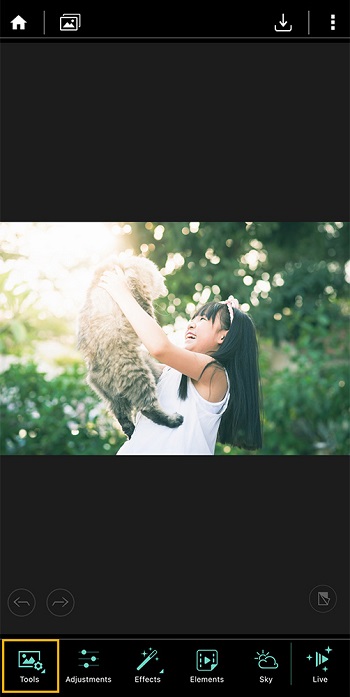
- Tap Crop & Rotate.
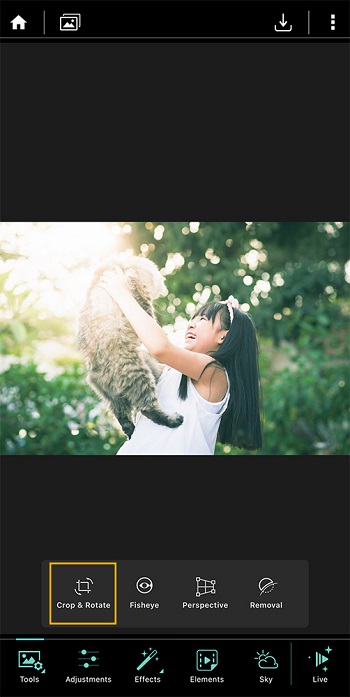
- Tap the Rotate Icon.
It is the first icon on the bottom menu and looks like a vertical rectangle becoming a horizontal rectangle.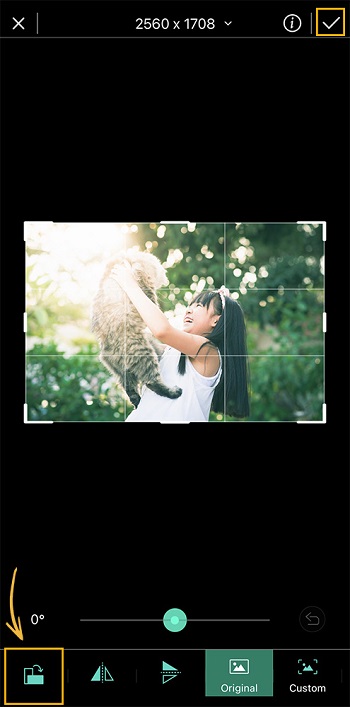
- Tap the Check Mark in the top right of your screen to save.
Best App to Rotate Images for Free
If you’ve ever felt frustrated trying to text or post an image stuck in the wrong orientation, then you know how vital a reliable image rotating app can be. Luckily, you just learned about the 5 best apps you can use on your devices to quickly rotate photos.
And the best app for rotating photos overall is PhotoDirector. Its rotation tool is easy to find and use, and it offers 90-degree turns and slight adjustments for everything in between. And it does so much more than just rotate photos.